AWS Connection Setup
Use this page to gather the AWS credentials Vexly needs. Follow the steps below to create a read-only IAM user and copy its access keys into Vexly.
What you'll collect
- Access Key ID – identifies the IAM user.
- Secret Access Key – secret credential used by Vexly to read data.
Start the AWS connection in Vexly
- In Vexly, open Connections.
- Click Add Connection → choose AWS.
- Stop on the empty AWS popup.
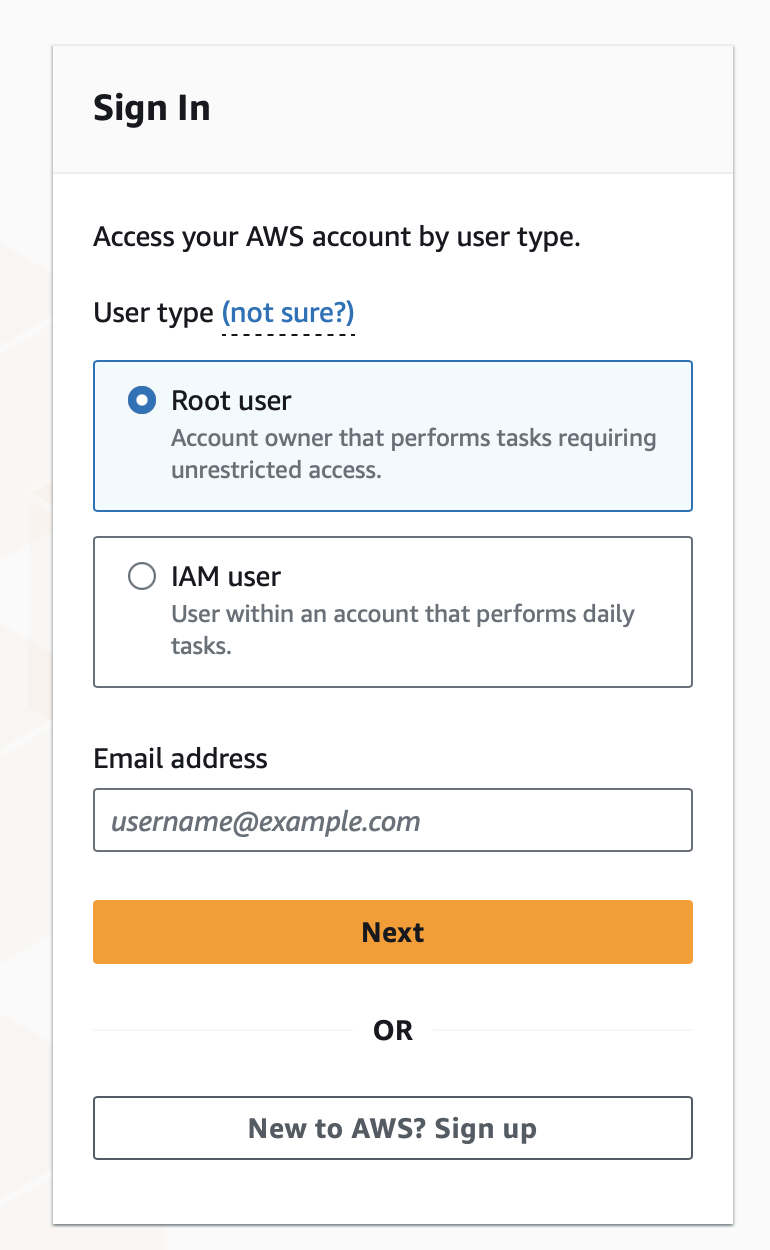
Log in to AWS
- Go to
https://console.aws.amazon.comand sign in with your AWS account.
Open the IAM dashboard
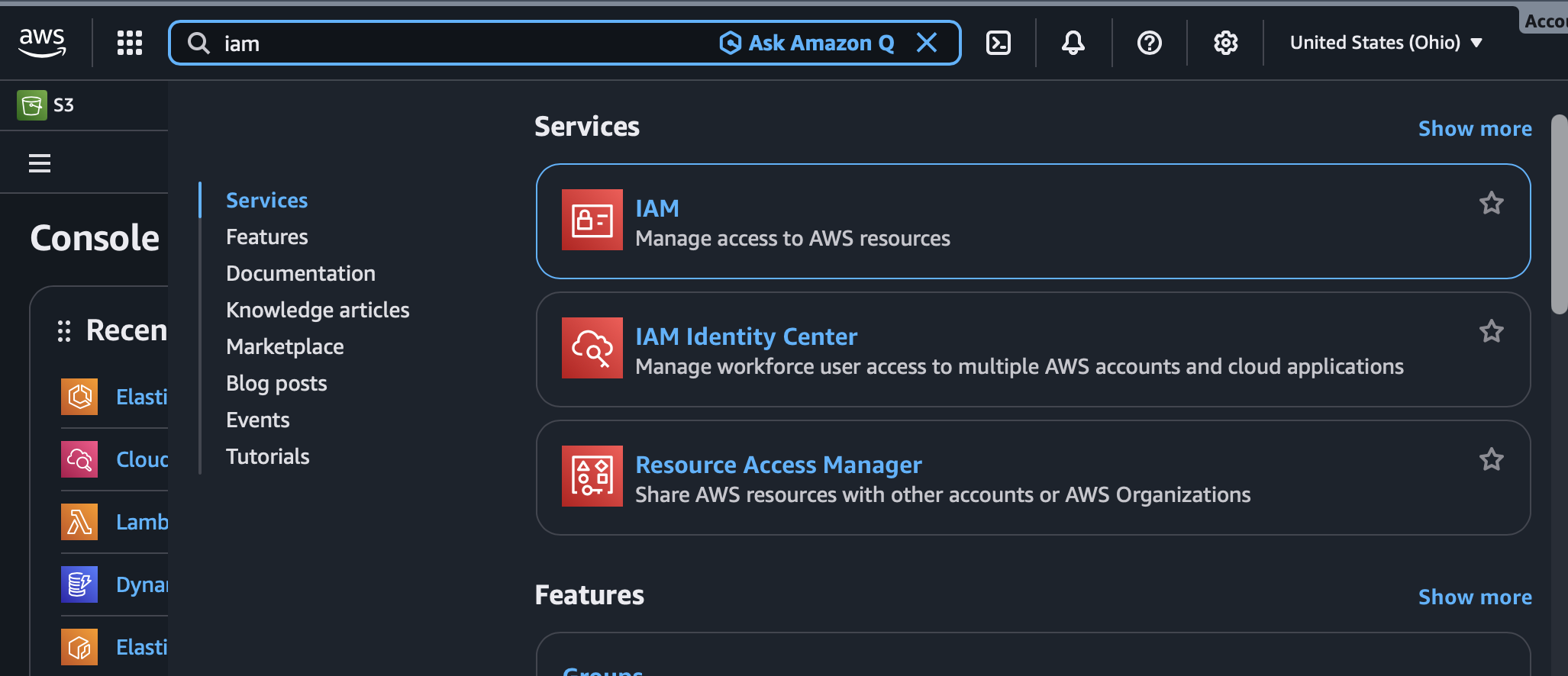
- In the AWS console search bar, type IAM.
- Click IAM under Services to open the IAM dashboard.
Create a new IAM user
- In the IAM dashboard, click Users in the left sidebar under Access management.
- Click the orange Create user button (top right).
Specify user details
- User name: Enter a name (e.g.,
vexly). - Click Next.
Set permissions
- Under Permissions options, choose Attach policies directly.
- In Permissions policies, search for ReadOnly.
- Set Filter by Type to AWS managed - job function.
- Select the ReadOnlyAccess policy checkbox.
- Click Next.
Review and create the user
- Review the user details and permissions summary.
- Click Create user. A green banner confirms success.
Generate access keys
- In the user list, click the new user name (e.g., vexly).
- Open the Security credentials tab.
- Scroll to Access keys and click Create access key.
Configure access key creation
- Select Command Line Interface (CLI) as the use case.
- Check the confirmation box acknowledging the best-practice notice.
- Click Next, then click Create access key.
Retrieve and copy the keys
- Click the copy icon next to Access key to copy the Access Key ID.
- Click the copy icon next to Secret access key (shown once) to copy it. Store it securely.
Finish in Vexly
- Return to the AWS popup in Vexly.
- Paste the Access Key ID and Secret Access Key.
- Click Add Connection.
Troubleshooting
- Can't find IAM: Use the AWS console search bar and choose IAM under Services.
- No ReadOnlyAccess policy: Clear filters and ensure AWS managed is selected; the policy is provided by AWS.
- Secret lost: Create a new access key for the user; secrets can't be re-shown once you close the modal.
- Permissions denied in Vexly: Verify the user has ReadOnlyAccess and that you pasted the correct Access Key ID/Secret Access Key pair.