GitHub Connection Setup
Use this page to gather the GitHub credentials Vexly needs. Follow the steps below to create a fine-grained personal access token and then paste it into Vexly.
What you'll collect
- Fine-grained personal access token – scoped, time-bound credential that lets Vexly read repository contents.
Start the GitHub connection in Vexly
- In Vexly, open Connections.
- Click Add Connection → choose GitHub.
- Stop on the empty GitHub popup.
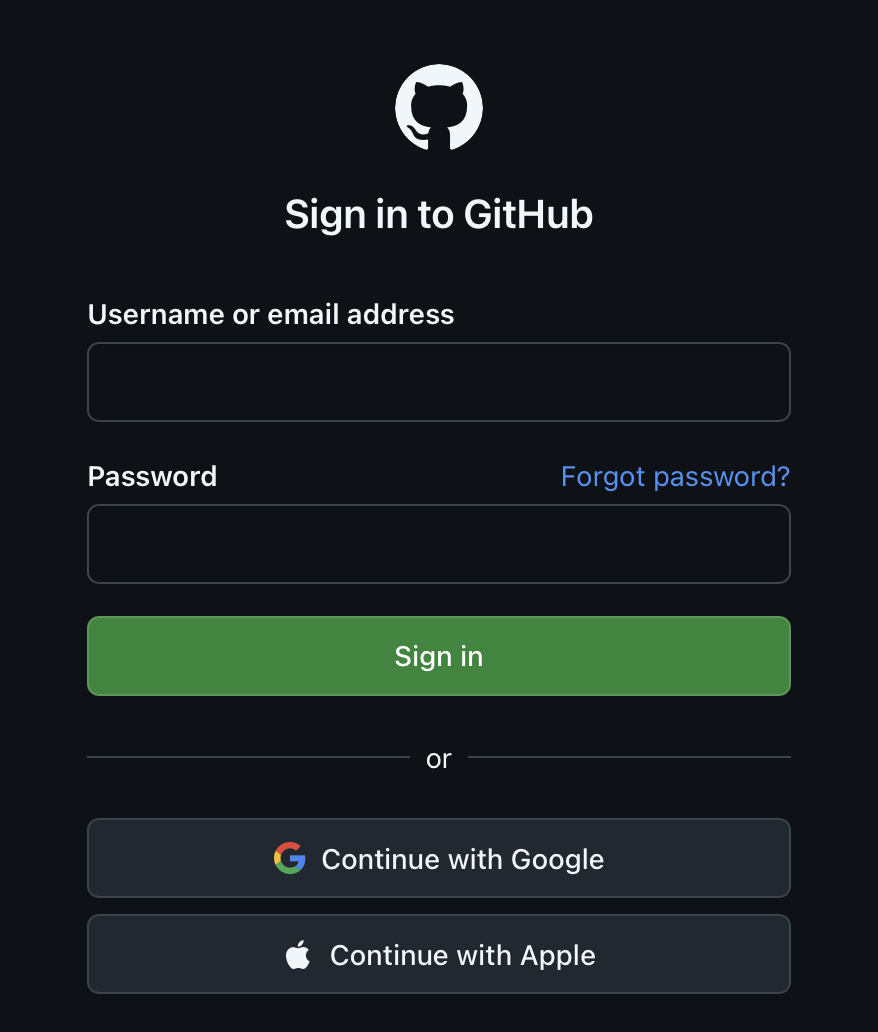
Log in to GitHub
- Go to
https://github.com/loginand sign in with your GitHub account.
Open Developer settings
- Click your profile avatar (top right) → Settings.
- In the left sidebar, scroll to the bottom and click Developer settings.
Start a fine-grained token
- Under Personal access tokens, click Fine-grained tokens.
- Click Generate new token.
Configure token details
- Token name: enter a label (e.g.,
vexly). - Expiration: choose 90 days.
- Repository access: select All repositories.
Set required permissions
- Expand Repository permissions.
- Search for Contents and set it to Read-only.
Generate and copy the token
- Scroll to the bottom and click Generate token.
- On the confirmation page, click the clipboard icon next to the token to copy it. Keep it safe—GitHub only shows it once.
Finish in Vexly
- Return to the GitHub popup in Vexly.
- Paste the personal access token you copied.
- Click Add Connection.
Troubleshooting
- Token not accepted: Confirm it is a fine-grained token with Contents → Read-only permission.
- Token lost: Generate a new token and update the Vexly connection—GitHub doesn't show old tokens.
- Wrong repo scope: Ensure All repositories is selected or regenerate with the needed repos.