Meta Ads Connection Setup
Use this page to gather the Meta Ads credential Vexly needs. Follow the steps below to generate a Graph API access token and paste it into Vexly.
What you'll collect
- Access Token – short‑lived Graph API token with ads read permissions.
Start the Meta Ads connection in Vexly
- In Vexly, open Connections.
- Click Add Connection → choose Meta Ads.
- Stop on the empty Meta Ads popup.
Log in to Meta
- Go to
https://business.facebook.com/and sign in with your Meta account.
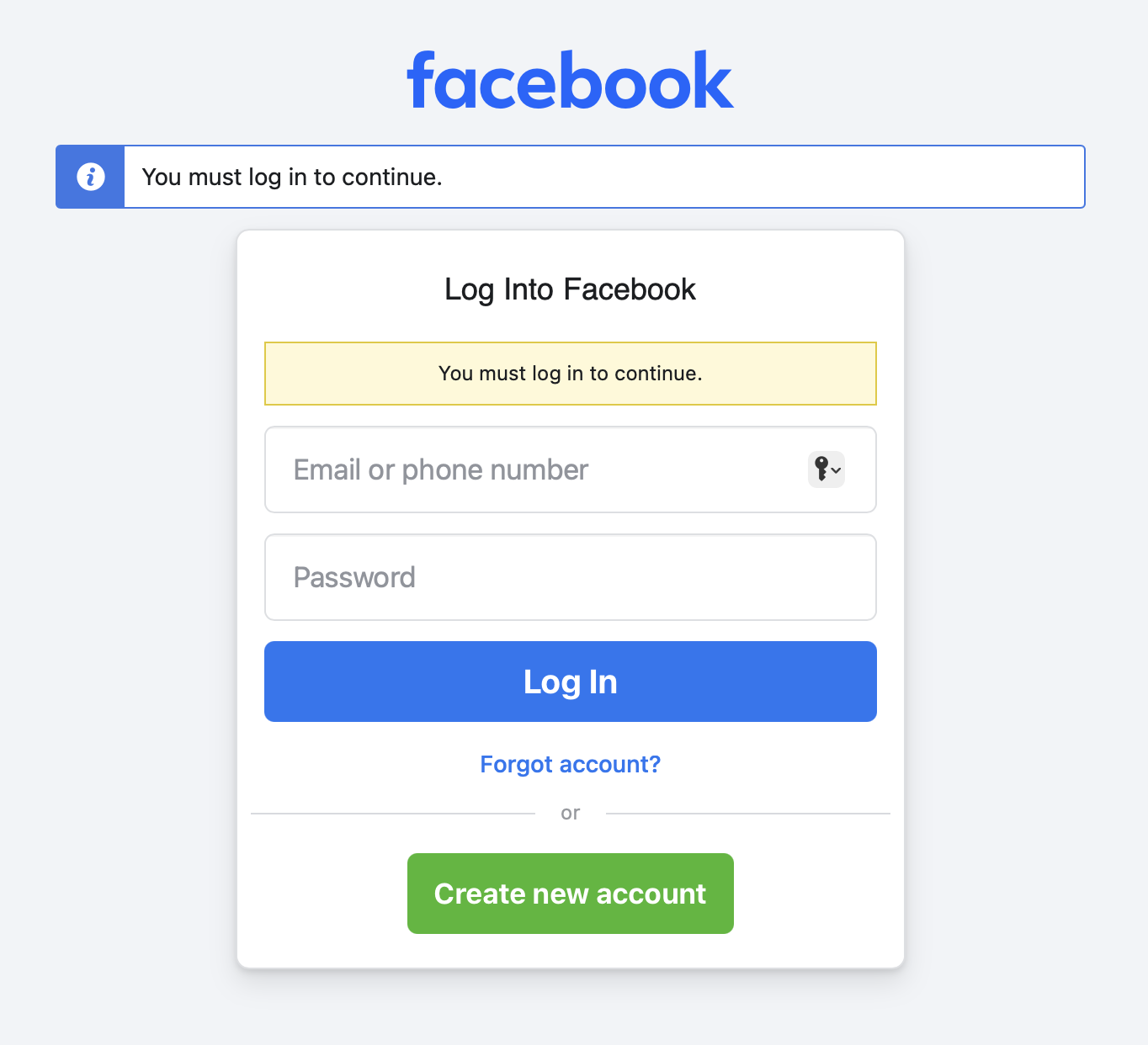
Open the Graph API Explorer
- Open the Graph API Explorer directly: https://developers.facebook.com/tools/explorer.
- If prompted, pick the correct app in the top-right app selector so the token belongs to the right Business account.
Select the required permissions
- In Permissions, select these scopes:
- ads_read
- attribution_read
- pages_read_engagement
- pages_read_user_content
- pages_show_list
- read_page_mailboxes
- read_insights
Generate the token
- Click Generate Access Token (top of the Explorer).
Approve the Facebook pop-up
- In the pop-up, click Continue as your account.
- Choose Opt in to all current and future pages, then click Continue.
- Review the requested access list, then click Save.
- On the confirmation screen, click Got It.
Copy the access token
- Back in the Explorer, the Access Token field refreshes with the new token.
- Click the clipboard icon next to the token to copy it. This string is the only value you need for Vexly.
Finish in Vexly
- Return to the Meta Ads popup in Vexly.
- Paste the Access Token.
- Click Add Connection.
Troubleshooting
- Token expired quickly: Tokens from the Explorer are short-lived; repeat the steps to generate a fresh one before reconnecting in Vexly.
- Missing permissions: Ensure every scope above is selected before generating the token; missing scopes will block data access.
- Wrong Business app: Use the app selector in the top right of the Explorer so the token ties to the correct Business account.
- Pop-up blocked: Allow pop-ups for developers.facebook.com or use a different browser profile to complete consent.